Almost every day, I log in to my VPS to work on my blog, company website, or client projects.
It started like any other day until one of my clients called to say their website was suddenly inaccessible to the public, even though they could still access the admin panel. That shouldn’t happen.
I quickly checked several other sites on the same server and discovered something interesting: all the sites under one cPanel account had the same issue.
That helped me narrow down the problem.
At first, I thought it might be something minor, maybe a theme update gone wrong or a temporary DNS issue.
But when I opened the error log, it pointed directly to the index.php file. Inside it, I found strange encoded scripts and references to unknown websites.
That’s when I realized the site had been hacked.
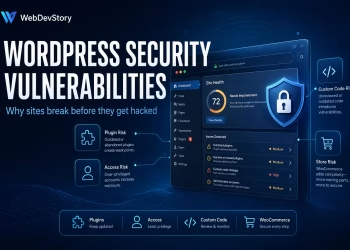
This kind of incident happens more often than many realize, especially with WordPress sites hosted on shared or semi-dedicated servers.
Outdated plugins, old test sites, unused themes, or weak file permissions can easily give attackers a way in.
Once one site is infected, it can quickly spread to others on the same server like a digital chain reaction.
So, I started a complete cleanup and hardening process for every site on the VPS, even those that seemed perfectly fine, to ensure the entire server was secure.
Table of Contents
2. Initial Investigation – Identifying the Breach
The first step was to confirm that this wasn’t just a minor issue or a caching problem.
After confirming that, I began investigating further to determine which website was serving as the backdoor.
From there, I started carefully checking both the files and the database.
Here’s what I did:
- In cPanel File Manager: I searched for suspicious .php files, especially random ones like
admin.phpthat don’t belong in the WordPress core. - In phpMyAdmin: I reviewed the
wp_userstable to check if any fake or unauthorized admin accounts had been added. - In the WordPress root and uploads folders: I sorted files by “last modified” to quickly spot recently changed or injected files.
- In the .htaccess file: I looked for any hidden redirection rules that might hijack visitors to unknown sites.
The investigation confirmed what I feared:
- A fake admin user named “admnlx” with a random email address had been created.
- A hidden
admin.phpfile contained encoded PHP functions, a clear backdoor for attackers. - Multiple
index.phpfiles across sites had encoded payloads silently executing malicious functions.
The infection had spread throughout the shared environment, so it was no longer a single-site problem.
3. Containing the Damage
The next step was to isolate the infection and prevent it from spreading or being used by bots.
I put the backdoor site into maintenance mode through .htaccess, allowing access only using my IP.
Everyone else saw a “Temporarily down for maintenance” message.
Here’s the snippet I used:
# Maintenance mode
ErrorDocument 503 "Temporarily down for maintenance"
RewriteCond %{REMOTE_ADDR} !^106.168.165.249$
RewriteRule ^ - [R=503,L]
This simple step isolated the site and stopped further attacks.
It’s similar to enclosing a contaminated area before cleaning it, which is a crucial step in handling a hacked website.
4. Cleanup: Deleting and Replacing Infected Files
Once the site was isolated, we began a systematic cleanup.
The goal was to remove all infected files, restore the original WordPress files, and make sure nothing malicious was left behind.
Here’s what we did:
- Deleted all unknown
.phpfiles, especially ones likeadmin.phpand other suspicious scripts. - Downloaded a fresh copy of WordPress from the official site and compared it with the existing one to find modified files.
- Replaced changed core files like
index.phpandwp-config.phpwith clean versions. - Removed inactive plugins, old themes, and unused folders to reduce potential risks.
It’s essential never to reuse old plugin or theme files after a hack, as they can still contain hidden malware.
Always reinstall them from trusted sources instead.
Finally, I checked the wp-content/uploads folder for suspicious files.
Hackers often hide scripts disguised as images, like image.jpg.php or style.php.
Every unknown file was checked carefully, and unnecessary folders were deleted.
5. Database and User Audit
The infection had created fake admin users inside the WordPress database.
This was one of the clearest indicators that the attacker had gained access beyond the file system level.
To address this, we:
- Checked the
wp_usersandwp_usermetatables for any unauthorized accounts or suspicious email addresses. - Deleted unknown entries and verified that only legitimate admin accounts remained.
- Changed the database username and password for all active sites to ensure no credentials were reused.
- Removed abandoned databases that belonged to old, migrated, or test sites to eliminate unnecessary attack points.
This reduced the possibility of hidden backdoors by helping to clean up the server environment and secure the active WordPress installations.
6. Permission & Ownership Fix
One major vulnerability came from incorrect file permissions.
Some directories were set to 0777, which means they were “world-writable”, allowing anyone (even unauthorized users or bots) to upload or modify files.
We fixed this by setting standardized, secure permissions across all sites:
- Folders: 755
- Files: 644
- wp-config.php: 600
No folder should ever be 777 unless it’s absolutely required temporarily (for example, while testing uploads).
After fixing permissions, we also verified file ownerships matched the cPanel user to prevent permission conflicts or execution issues.
7. Verifying with CXS Scan
To reduce the workload and ensure consistent maintenance, we chose the fully managed VPS service from Namecheap.
This approach ensures that critical tasks like security monitoring, updates, and performance optimization are consistently handled at the server level.
Since we didn’t have root-level access to the VPS, we requested Namecheap support to run a CXS (ConfigServer eXploit Scanner) across the entire account.
  🧠 CXS Scan Summary:
  --------------------------
  Scanned Files       : 150,544
  Ignored Items       : 755
  Suspicious Matches    : 74
  Viruses Found       : 0
  Fingerprint Matches   : 0
  Data Scanned       : 4403.93 MB
  Scan Peak Memory      : 399,916 kB
  Scan Time/Item       : 0.029 sec
  Total Scan Time       : 5018.821 sec
The initial scan detected 74 suspicious matches and 10 fingerprint matches spread across different websites within the VPS.
After reviewing the report, we found that all fingerprinted files contained malicious or corrupted scripts, confirming that multiple sites had been compromised.
Thankfully, there were 0 confirmed active viruses, meaning no running malware processes were present on the server.
After manually cleaning the infected files, fixing file permissions, and removing old or unused directories, we requested a follow-up CXS scan to ensure everything was clean.
The support team provided a detailed scan summary and an analysis link, allowing us to review each flagged file.
Their quick response and thorough follow-up gave me confidence that the system was finally free of hidden payloads or encoded backdoors.
8. Security Hardening for the Future
Once the recovery was complete, we shifted focus from cleaning to prevention.
Here are the hardening steps we implemented afterward:
- Enabled reCAPTCHA and honeypot protection on all forms to block automated spam bots.
- Configured all WordPress sites to use SMTP for sending emails, avoiding the insecure
mail()function. - Verified that XML-RPC was fully disabled to prevent brute-force and pingback exploits.
- Added strict
.htaccessrules for the uploads and includes directories to disallow PHP execution. - Removed all abandoned or unused sites and databases to minimize potential attack surfaces.
These changes transformed the VPS from a previously vulnerable shared environment into a securely maintained and continuously monitored setup.
Most importantly, don’t wait for an incident to act; proactive maintenance is the cheapest form of protection.
9. Key Lessons Learned
This experience was both stressful and educational. Here are the key lessons we took away:
- Update all WordPress sites; even an unused subdomain or staging copy might be used as a backdoor by attackers.
- Never leave
0777permissions active; they invite abuse. - Regularly review admin users and database credentials to detect unauthorized access early.
- Run periodic malware scans using tools like CXS, Wordfence, or Imunify360.
- Use a CDN with built-in security filtering, such as Cloudflare or QUIC.cloud, to add another layer of defense.
10. Conclusion: From Panic to Prevention
It’s easy to panic when your website suddenly goes offline or starts acting strangely, but recovery is always possible if you act quickly and follow a structured process.
This entire cleanup journey reminded me that even a single outdated plugin, theme, or abandoned site can compromise an entire server.
Website security isn’t a one-time task; it’s an ongoing discipline of updates, periodic reviews, and smart configurations.
If your WordPress site ever shows unknown files, strange redirects, or unauthorized users, don’t ignore the signs.
Start by isolating the site, run a malware scan through your hosting provider (or directly from cPanel if available), and carefully follow a step-by-step cleanup routine.
With the right actions and consistency, you’ll regain control faster than you think, and your WordPress environment will emerge stronger than before.
🚀 Before You Go:
- 👏 Found this guide helpful? Give it a like!
- 💬 Got thoughts? Share your insights!
- 📤 Know someone who needs this? Share the post!
- 🌟 Your support keeps us going!
💻 Level up with the latest tech trends, tutorials, and tips - Straight to your inbox – no fluff, just value!