WordPress websites can break for many reasons, but Elementor-related critical errors are often more complex than they first appear.
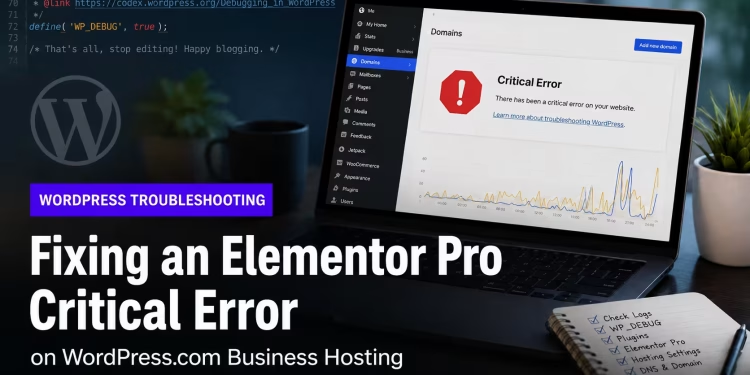
In this case, a website owner reached out because their WordPress site went down whenever Elementor Pro was activated. The website displayed a critical error message, making it impossible to use Elementor Pro safely.
At first, it looked like a direct Elementor Pro issue. After deeper troubleshooting, however, the actual problem came from a third-party Elementor addon plugin that was no longer compatible with the current Elementor version.
Table of Contents
The Problem
The website was running on WordPress with an active Elementor Pro subscription. The site worked when Elementor Pro was disabled, but as soon as Elementor Pro was activated, WordPress displayed a critical error.
The main symptoms were:
- The website went down after activating Elementor Pro.
- WordPress showed a critical error message.
- Elementor Pro could not be used safely.
- The website owner needed the issue resolved quickly without rebuilding the site.
This type of issue is common after plugin updates, especially when Elementor, Elementor Pro, and third-party Elementor addon plugins are all involved. We have also covered several common Elementor issues that can affect WordPress websites in different ways.
Understanding the Hosting Setup
One of the first steps was confirming where the website was actually hosted.
The domain was managed through a domain registrar, but the website itself was hosted on WordPress.com Business Hosting. This was important because WordPress.com Business handles logs, hosting tools, and debugging differently from a traditional cPanel-based WordPress setup.
Instead of looking for a normal cPanel file manager or hosting error log, the issue had to be investigated through the WordPress.com hosting dashboard and site logs.
This is also why basic server knowledge for developers matters, even when working with managed platforms where access is limited compared to traditional hosting.
Enabling Debugging
To begin the diagnosis, WordPress debugging was enabled:
define('WP_DEBUG', true);
define('WP_DEBUG_LOG', true);
define('WP_DEBUG_DISPLAY', false);
On many self-hosted WordPress websites, this setup writes errors to a debug log inside the wp-content directory. On WordPress.com Business, however, error visibility depends heavily on the platform’s built-in logs and monitoring tools.
After checking the logs, the real issue became clear.
The Root Cause
The fatal error was not caused directly by Elementor Pro.
The issue was coming from a plugin called:
Unlimited Elements for Elementor Premium
The error log showed a fatal error similar to this:
PHP Fatal error: Uncaught Error: Class "Elementor\Core\Schemes\Typography" not foundThis meant the plugin was trying to use an Elementor class that was no longer available in the current Elementor version.
The problematic area was related to typography controls inside the addon plugin. The plugin was referencing an outdated Elementor typography scheme:
$arrControl["scheme"] = Typography::TYPOGRAPHY_3;Because the required Elementor class was missing or deprecated, the plugin failed during the page rendering process. Elementor Pro was involved in the loading sequence, but the actual conflict came from the outdated third-party addon code.
Why This Caused a Critical Error
Elementor websites often depend on multiple connected plugins:
- Elementor
- Elementor Pro
- Header/footer builder plugins
- Elementor addon libraries
- Custom widgets
- Theme Builder templates
When one addon plugin uses outdated Elementor internals, the issue may only appear when Elementor Pro loads specific templates, widgets, or theme builder sections.
That is exactly what happened here. Elementor Pro triggered the rendering process, and the Unlimited Elements addon failed because it was calling an outdated class.
The Fix
The fix was to update the incompatible plugin code so it no longer called the missing Elementor typography class in a way that caused a fatal error.
In situations like this, careful code-level troubleshooting is important because a small compatibility issue can break the full page rendering process. We have also shared a practical guide on quick WordPress code and database fixes for cases where direct troubleshooting is needed without a full local setup.
After correcting the compatibility issue, Elementor Pro could be activated again without crashing the website.
After applying the fix, the following checks were completed:
- Elementor Pro activated successfully.
- The frontend loaded properly.
- The WordPress critical error disappeared.
- Elementor widgets rendered correctly.
- No recurring fatal errors appeared in the logs.
Final Testing
After restoring the website, several follow-up checks were completed to make sure the fix was stable.
Elementor Compatibility
Elementor and Elementor Pro were checked to make sure the installed versions were compatible.
Plugin Conflict Review
The issue was isolated to the Unlimited Elements addon plugin rather than Elementor Pro itself.
Frontend Testing
The website pages were reviewed to confirm that layouts, headers, footers, and Elementor content were loading correctly.
Log Monitoring
The WordPress.com Business logs were checked again after the fix to confirm that the fatal error was no longer repeating.
Like many cases of troubleshooting website downtime, the real fix came from identifying the exact failure point instead of guessing.
Key Lesson
This issue highlights an important WordPress maintenance lesson:
Elementor Pro is not always the real cause of an Elementor-related critical error.
Sometimes the real issue comes from an addon plugin that relies on outdated Elementor classes or internal APIs.
Critical errors are only one part of a broader group of common WordPress issues that can appear after plugin updates, compatibility changes, or server-level problems.
Before updating Elementor or Elementor Pro on a production website, it is safer to:
- Take a full backup.
- Check addon plugin compatibility.
- Test major updates on staging when possible.
- Review logs after updates.
- Avoid leaving outdated Elementor addon plugins active for too long.
Final Result
The Elementor Pro critical error was successfully resolved. The website became accessible again, Elementor Pro worked properly, and the root cause was confirmed as a compatibility issue with a third-party Elementor addon plugin.
The site did not require a full rebuild, migration, or theme replacement.
The main takeaway is simple:
The website was not broken because Elementor Pro itself failed. It was broken because another Elementor addon plugin was using outdated code.
Need Help With Elementor or WordPress Critical Errors?
Elementor critical errors can be stressful, especially when they affect a live business website. But in most cases, the fastest path to a safe fix is proper debugging, log analysis, and plugin conflict isolation.
Instead of guessing, the better approach is to identify the exact fatal error, trace the plugin or theme responsible, and apply the right fix without damaging the rest of the website.
For ongoing protection, regular updates, backups, and compatibility checks, you can explore our WordPress maintenance package.
🚀 Before You Go:
- 👏 Found this guide helpful? Give it a like!
- 💬 Got thoughts? Share your insights!
- 📤 Know someone who needs this? Share the post!
- 🌟 Your support keeps us going!
💻 Level up with the latest tech trends, tutorials, and tips - Straight to your inbox – no fluff, just value!